v2rayN is the most popular Windows client for V2Ray/Xray protocols (VLESS, VMess, Trojan, Shadowsocks). This step-by-step guide shows you how to install, configure, and troubleshoot v2rayN in just 5 minutes.
v2rayN is a user-friendly Windows GUI client for managing advanced proxy protocols like VLESS, VMess, Shadowsocks, and Trojan. It's powered by V2Ray/Xray cores and offers powerful features including:
💡 Why v2rayN? Unlike simpler proxies, v2rayN supports cutting-edge protocols that offer better performance, stronger encryption, and improved censorship resistance. It's the go-to choice for users needing reliable access to restricted content.
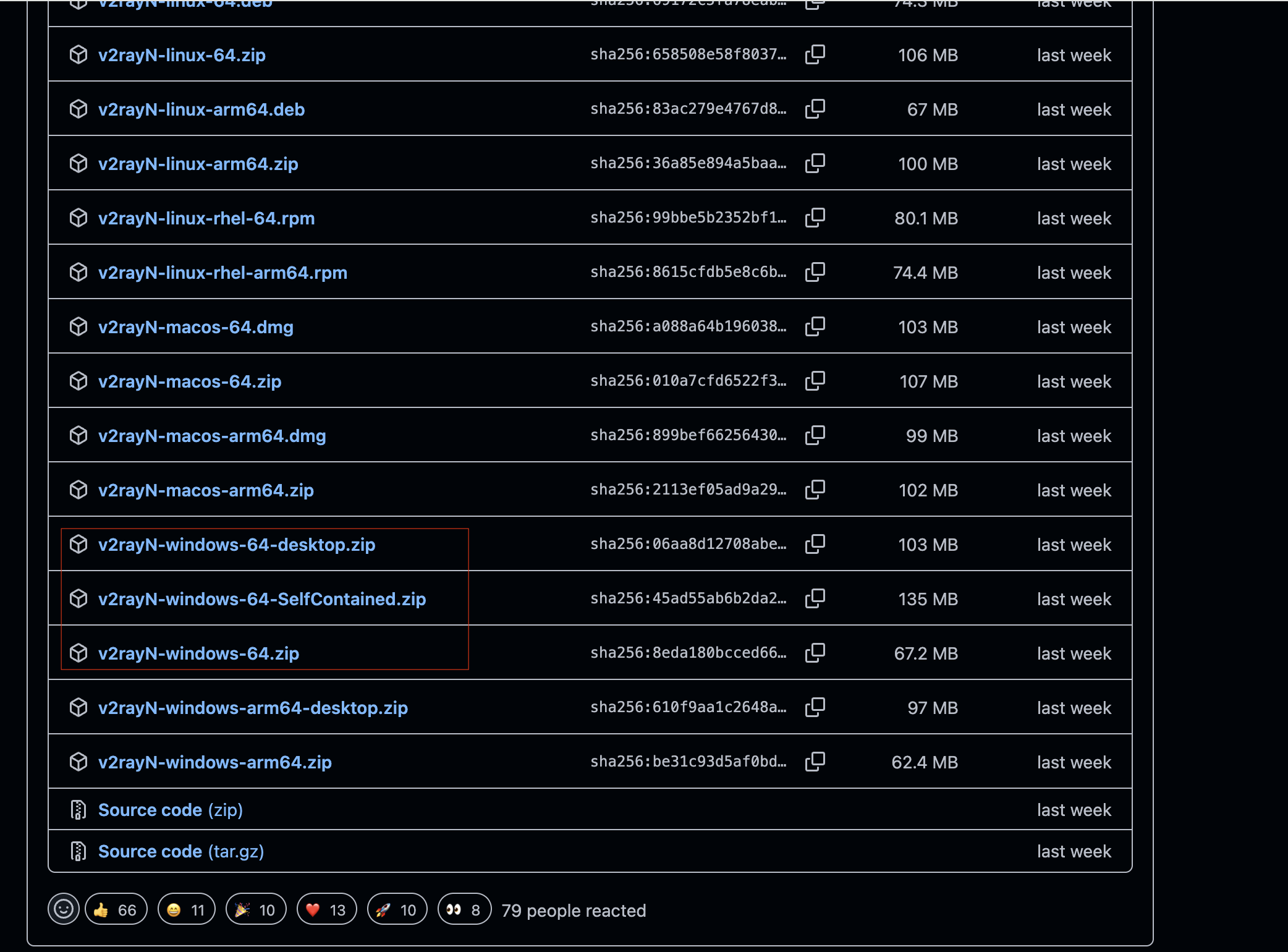
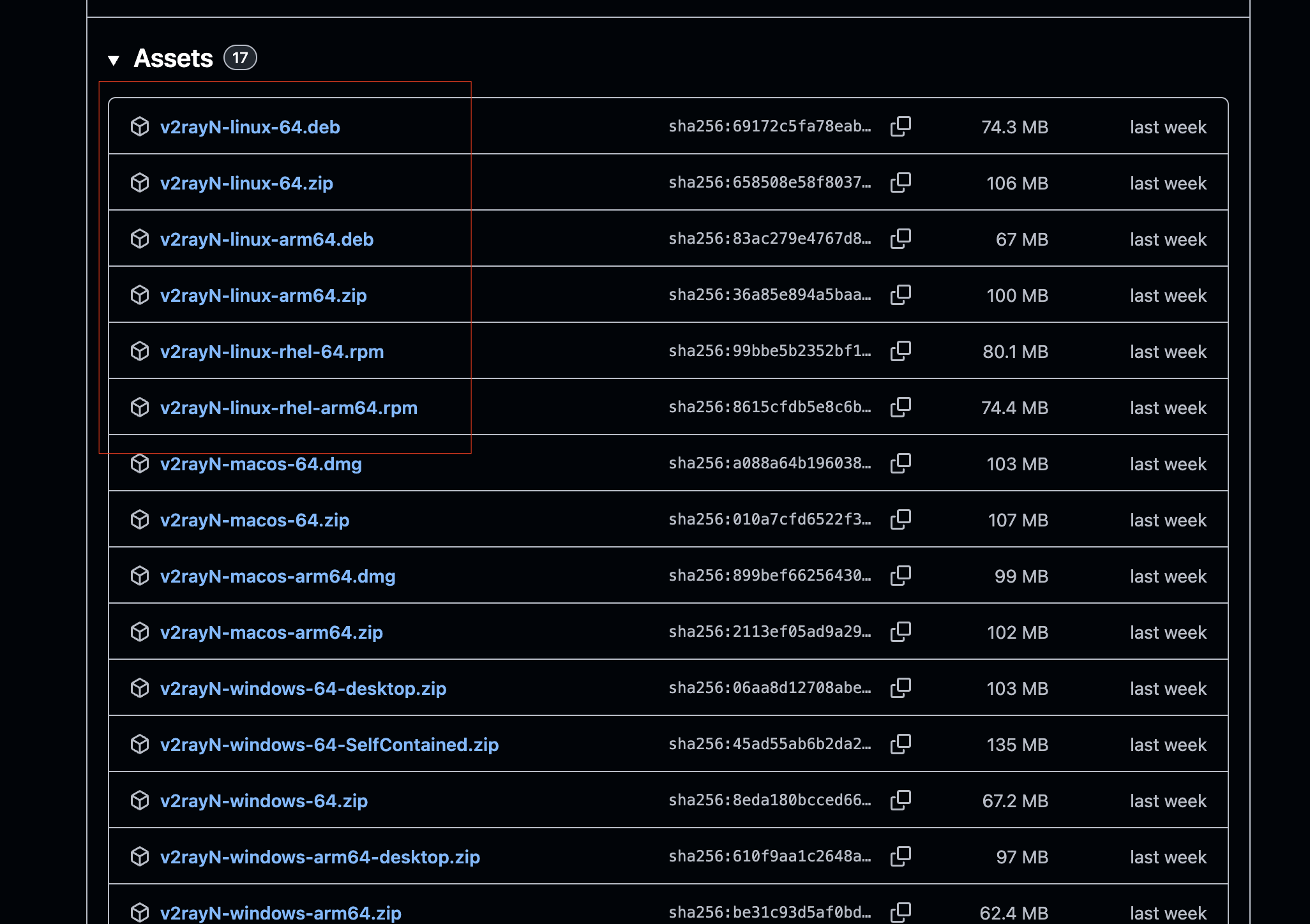
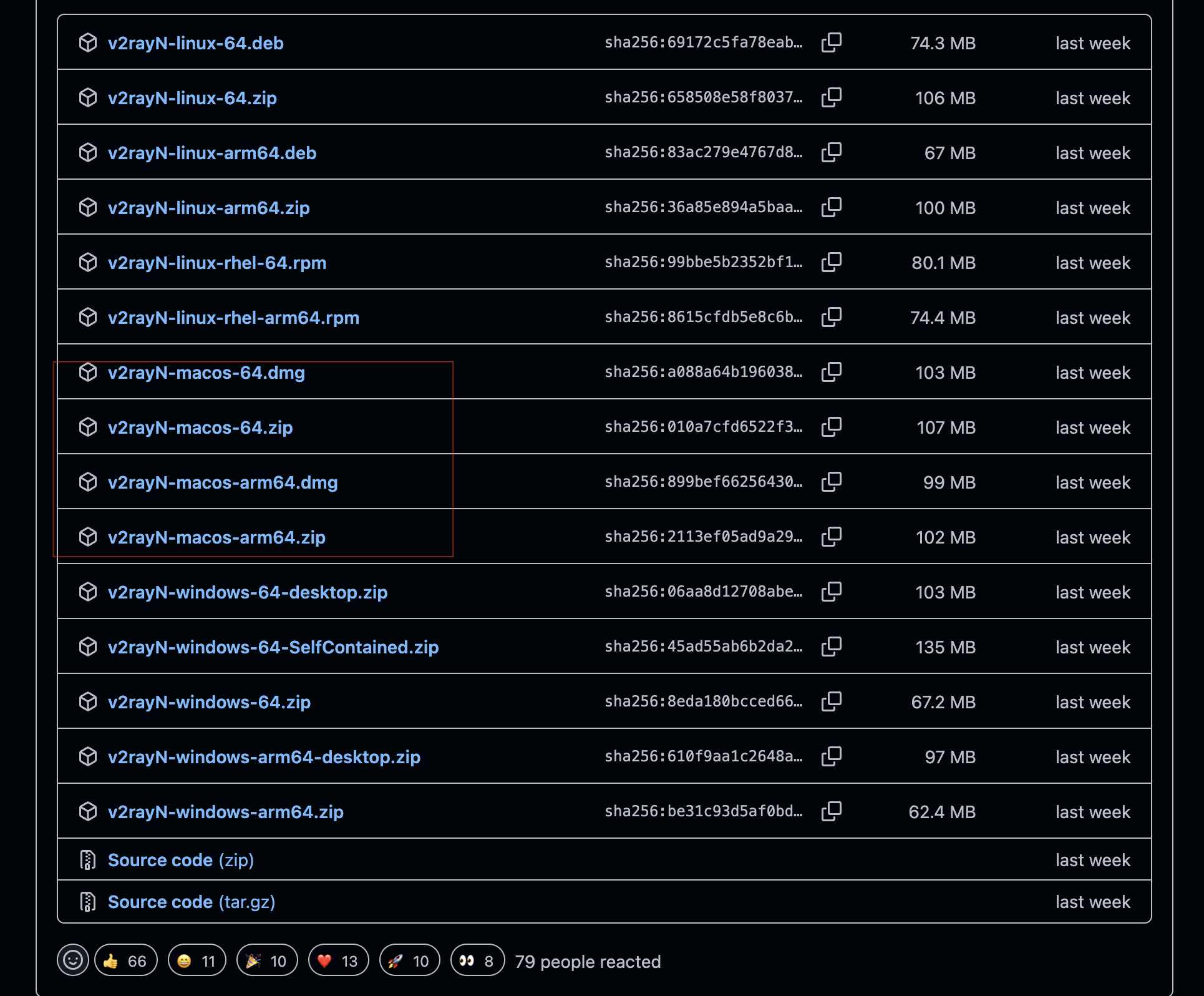
v2rayN-With-Core.zip. Avoid the tiny "no-core" package.C:\Tools\v2rayN).⚠️ Important: Some antivirus tools may flag the binaries. Ensure you downloaded from the official GitHub source and whitelist v2rayN if needed.
v2rayN.exe to launch. On first run, it may request administrator access to set system proxy rules.💡 Pro Tip: If you use multiple protocols (VMess, VLESS, Shadowsocks), Xray core handles them all. Stick with Xray unless troubleshooting specifically requires v2ray-core.
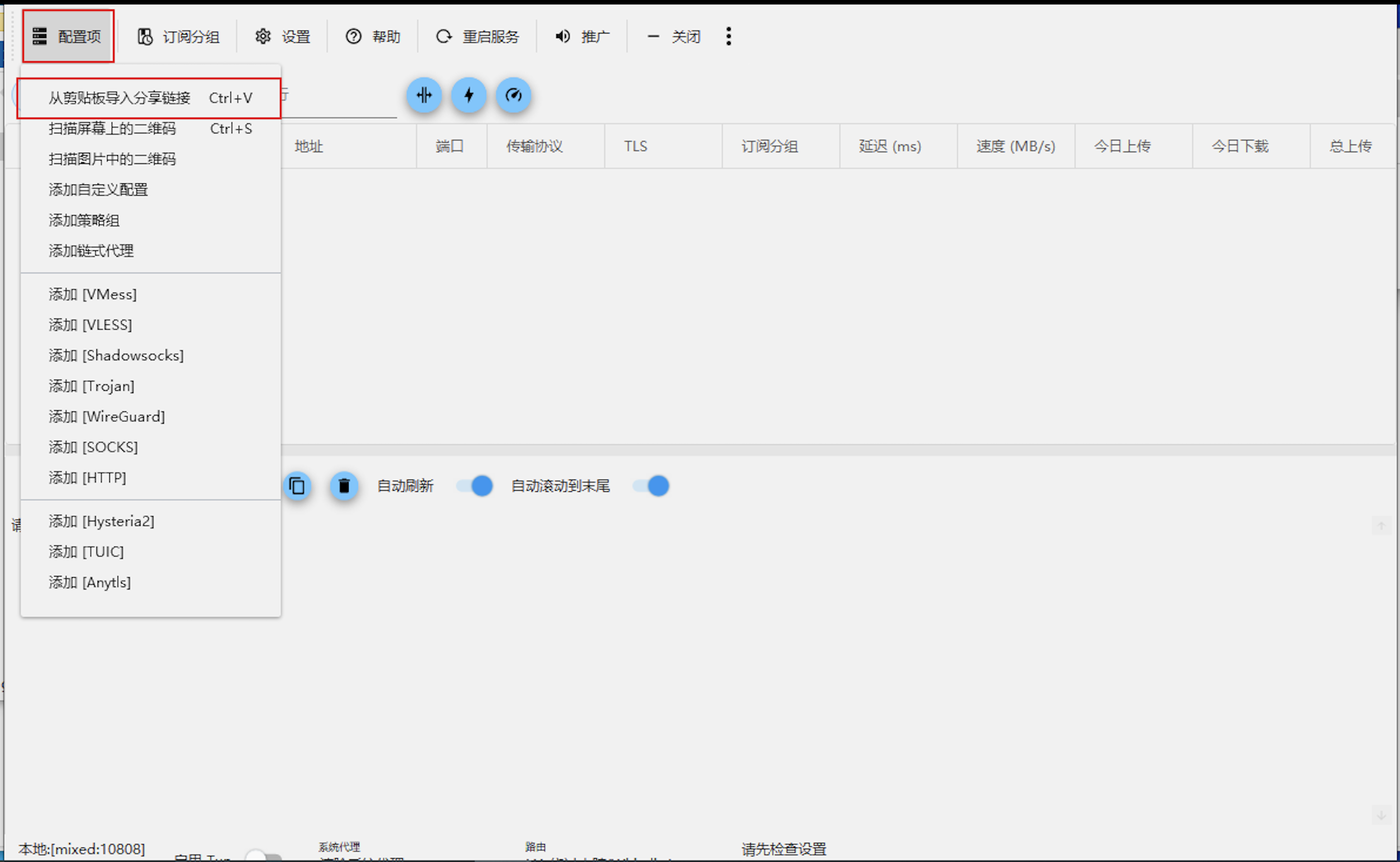
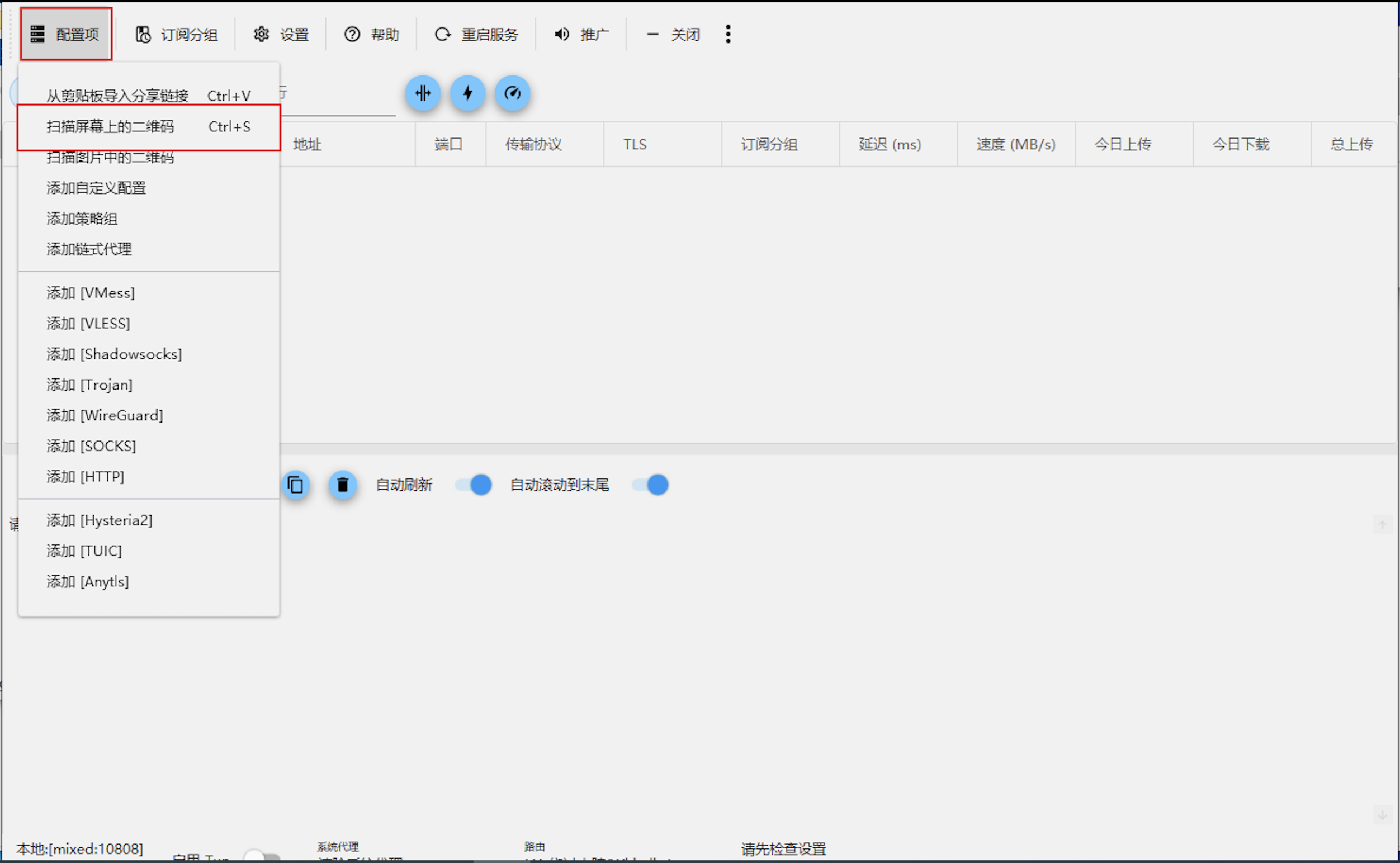
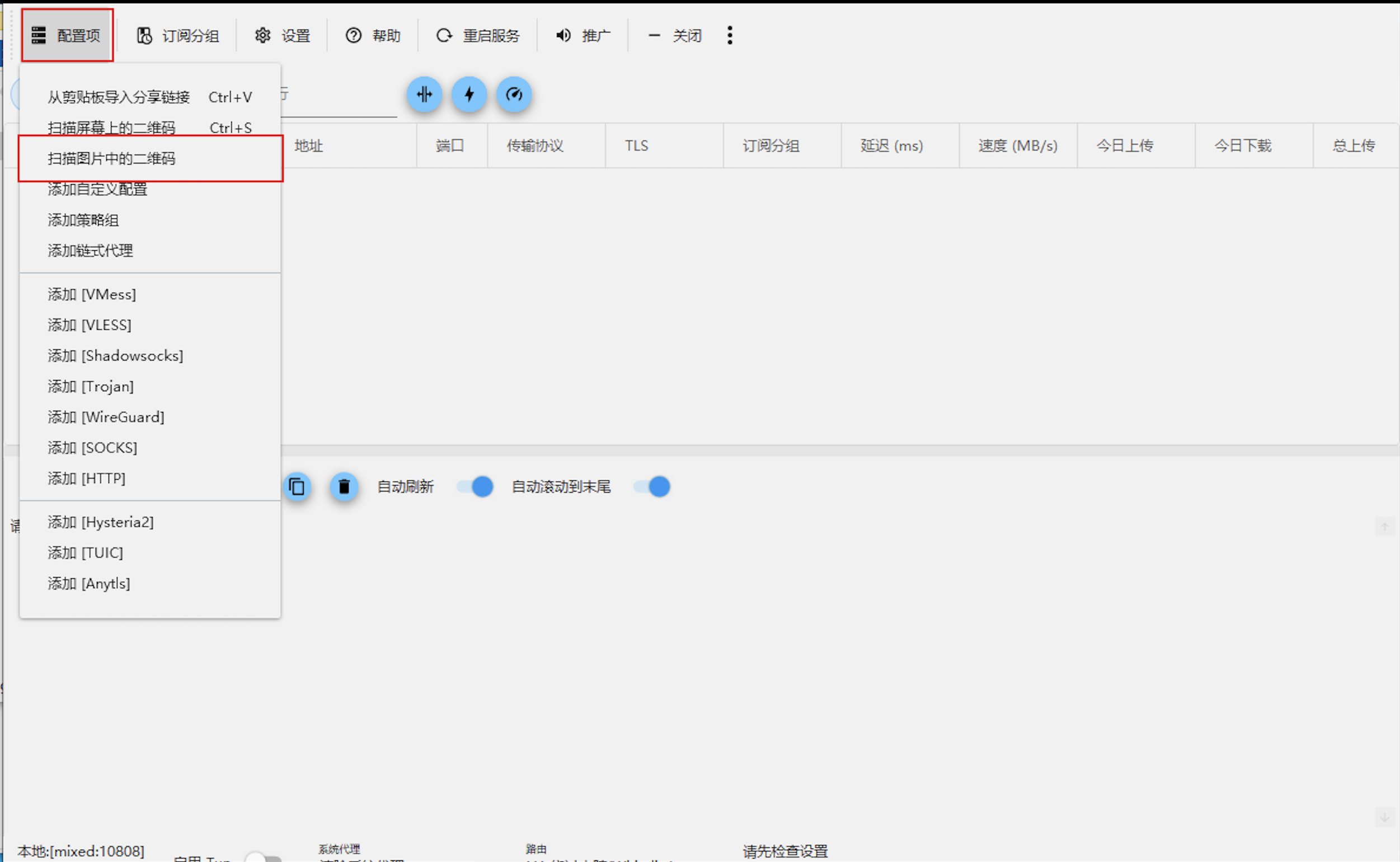
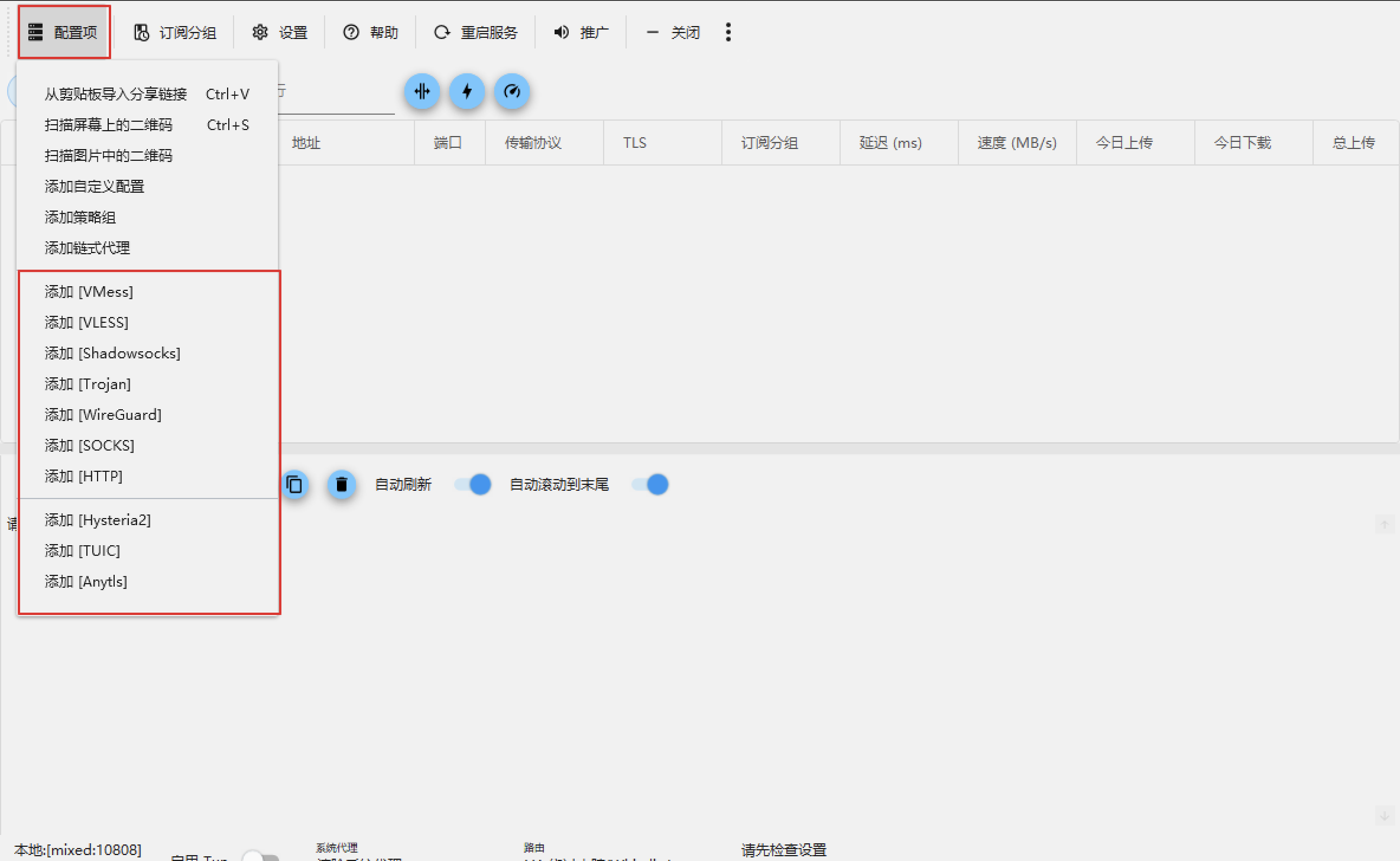
vless:// or vmess:// URL.Ctrl+V) to add the node.✅ Recommended: Use subscription URLs whenever possible. They auto-refresh, so you always have the latest working servers without re-importing manually.
Visit our IP check tool to confirm your IP has changed. If you see your original ISP location, double-check the active server and proxy mode settings.
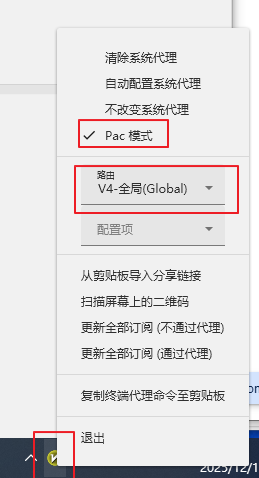
💡 Pro Tip: PAC mode is ideal for daily browsing—foreign sites route through proxy while domestic sites stay fast on direct connections. Switch to Global mode only for testing or if specific apps ignore PAC rules.
v2rayN supports advanced routing and DNS configuration via Xray. Typical strategies include:
Consider importing curated rule sets or applying rules provided by your subscription. If you suspect DNS leaks, use DNS Leak Test and enable DoH in the browser when appropriate.
⚠️ Advanced: Custom routing rules can significantly improve speed and privacy. Start with subscription-provided rules before building your own unless you have specific needs.
Cannot connect after importing: Verify system time is accurate (VMess often fails with incorrect time). Ensure you installed the core-included package. Try another node if the server is down.
App closes when window is closed: v2rayN minimizes to the system tray by default. Check the tray icon to reopen the main window.
Browser traffic not proxied: Confirm “Enable system proxy” is checked. Ensure the browser is set to use system proxy. Check local firewall rules.
DNS leaks: Use PAC/smart mode with proper DNS configuration, or enable DoH in your browser. Test with DNS Leak Test.
HTTPS certificate errors: Verify system time/timezone, remove interfering MITM tools, and update root certificates.
Copy your vless:// URL, open v2rayN, and use "Import from Clipboard" or press Ctrl+V. The server will appear in your Servers list immediately.
PAC (smart) mode routes only specific foreign sites through the proxy while domestic traffic goes direct. Global mode routes all traffic through the proxy. PAC mode is recommended for most users—it's faster and more efficient.
Check that your system time is accurate (VMess requires time synchronization within ±90 seconds), ensure you downloaded the version with core included, and verify the server is online by trying another node from your list.
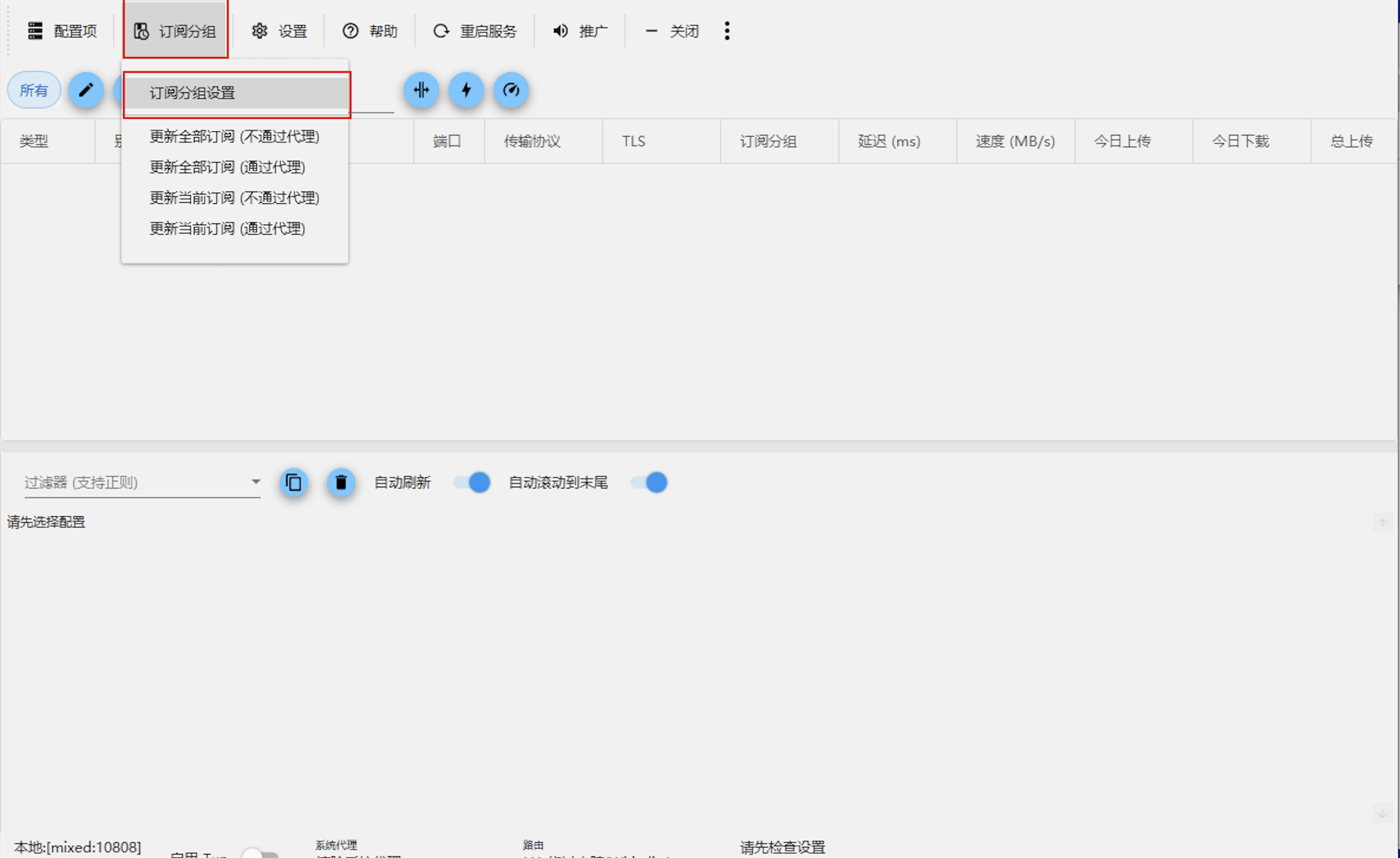
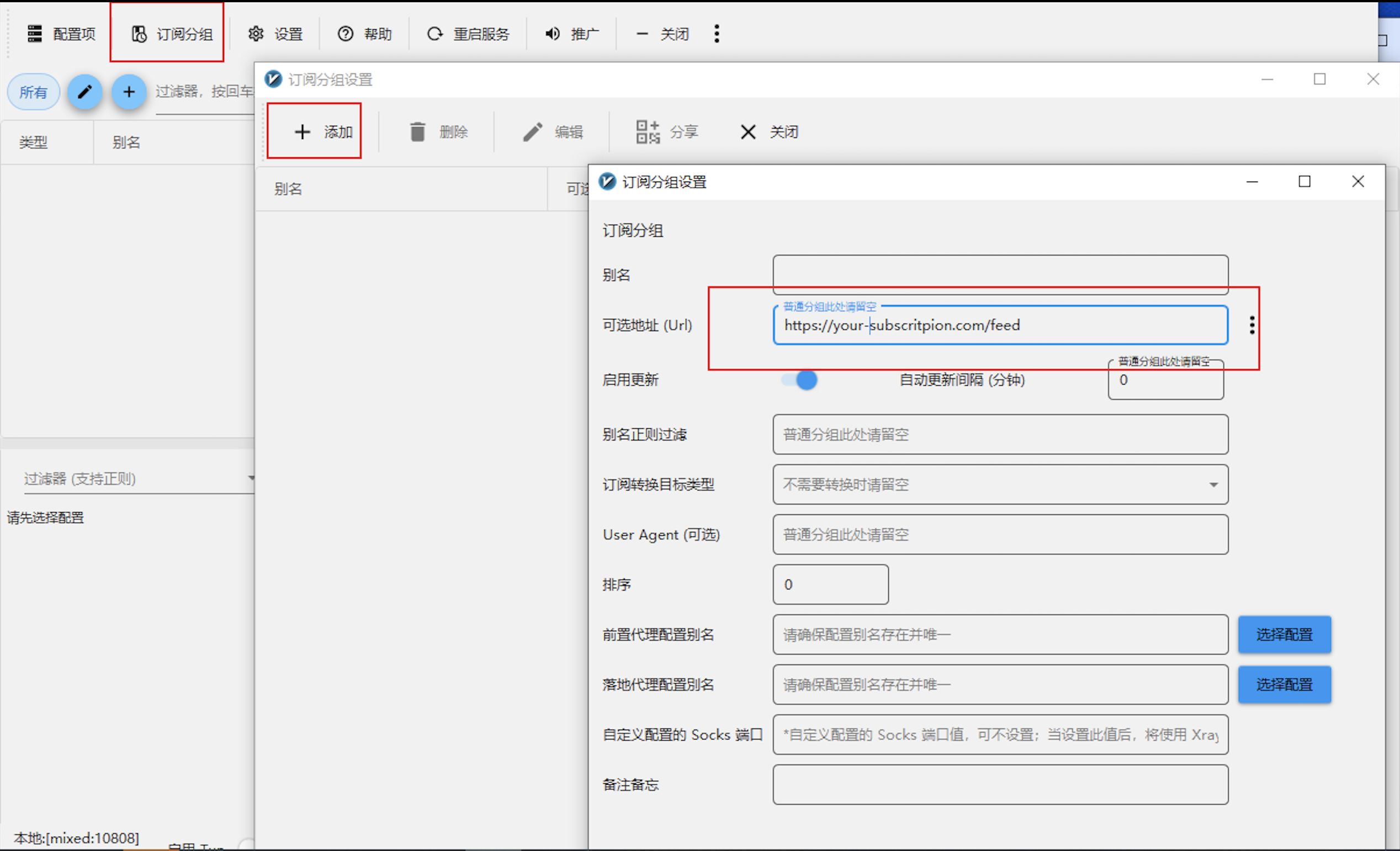
In v2rayN, go to Subscription settings, add your subscription URL, save it, then click "Update Subscription" to fetch all available servers automatically. Set up auto-refresh to keep your server list current.
Cannot connect after importing:
Verify system time is accurate (VMess often fails with incorrect time). Ensure you installed the core-included package. Try another node if the server is down.
App closes when window is closed:
v2rayN minimizes to the system tray by default. Check the tray icon in the bottom-right corner to reopen the main window.
Browser traffic not proxied:
Confirm "Enable system proxy" is checked in v2rayN. Ensure your browser is set to use system proxy settings. Check local firewall rules aren't blocking connections.
DNS leaks detected:
Use PAC/smart mode with proper DNS configuration, or enable DoH (DNS over HTTPS) in your browser. Test with our DNS Leak Test tool.
HTTPS certificate errors:
Verify your system time/timezone is correct, remove any interfering MITM tools, and update root certificates via Windows Update.
Use our smart proxy finder to scan and recommend fast, available routes for your region.
Launch a Scan